


Set up your models
When you first run LM Studio, the first thing you’ll want to do is set up one or more models. A sidebar button opens a curated search panel, where you can search for models by name or author, and even filter based on whether the model fits within the available memory on your current device. Each model has a description of its parameter size, general task type, and whether it’s trained for tool use. For this review, I downloaded three different models:
Downloads and model management are all tracked inside the application, so you don’t have to manual wrangle model files like you would with ComfyUI.
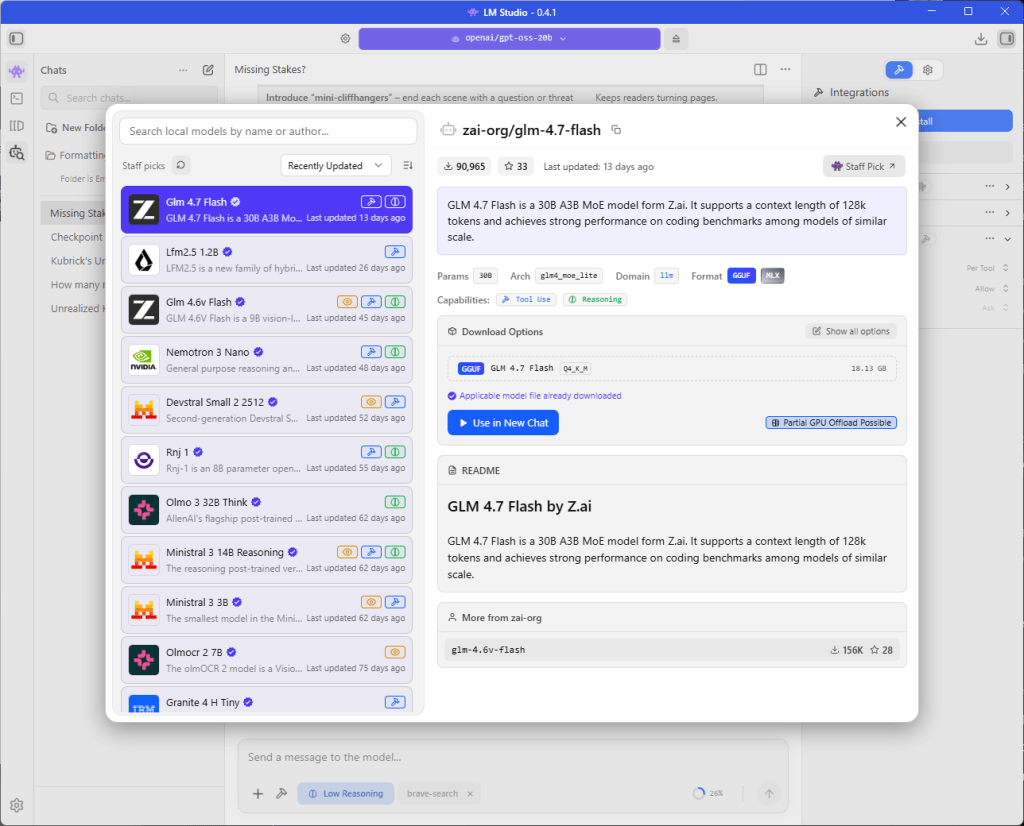
The model selection interface for LM Studio. The model list is curated by LM Studio’s creators, but the user can manually install models outside this interface by placing them in the app’s model directory.
Foundry
Conversing with an LLM
To have a conversation with an LLM, you choose which one to load into memory from the selector at the top of the window. You can also finetune the controls for using the model—e.g., if you want to attempt to load the entire model into memory, how many CPU threads to devote to serving predictions, how many layers of the model to offload to the GPU, and so on. The defaults are generally fine, though.
