


Few things are as delightfully divisive as Android’s dark mode.
Some phones now ship with Android’s darker-style interface activated by default. Most reasonably recent devices offer it as a swift ‘n’ simple toggle. And most people, in my experience, have amusingly strong preferences about which approach they prefer — the standard Android “light” mode, in which screens tend to be bright and with shades of white as a foundation, and the dark mode (a.k.a. “dark theme”), where black and dark gray dominate and everything is much more muted and muddy.
It really is a night and day difference, so to speak — but no matter where you fall on the light vs. dark preference spectrum, it’s well worth your while to noddle over two pertinent points:
- Android’s dark mode doesn’t have to be an all-or-nothing decision. With the right setup, you can use it as a dynamically activated sometimes switch that enables itself automatically based on different variables and gives you a darker, less glary motif when conditions call for it while leaving you with the lighter, brighter look the rest of the time.
- Regardless of how often you’re using dark mode, a few easy adjustments will make it meaningfully more complete and effective as an end-to-end interface style for whatever you’re doing on your device.
It occurred to me recently that we’ve gone over several smart Android dark mode enhancements over the past weeks and months — and that, put together into a single power-pack bundle, these small-seeming items can add up to create a pretty dramatic difference in your Android-using experience, whether you’re a full-fledged dark mode convert or a more light-preferring vampire skeptic.
Here, specifically, are five easy ways to make Android’s dark mode meaningfully better for you.
[Keep the nerdy knowledge coming with my free Android Intelligence newsletter — something new and useful in your inbox every Friday!]
Android dark mode power-up #1: The app expansion
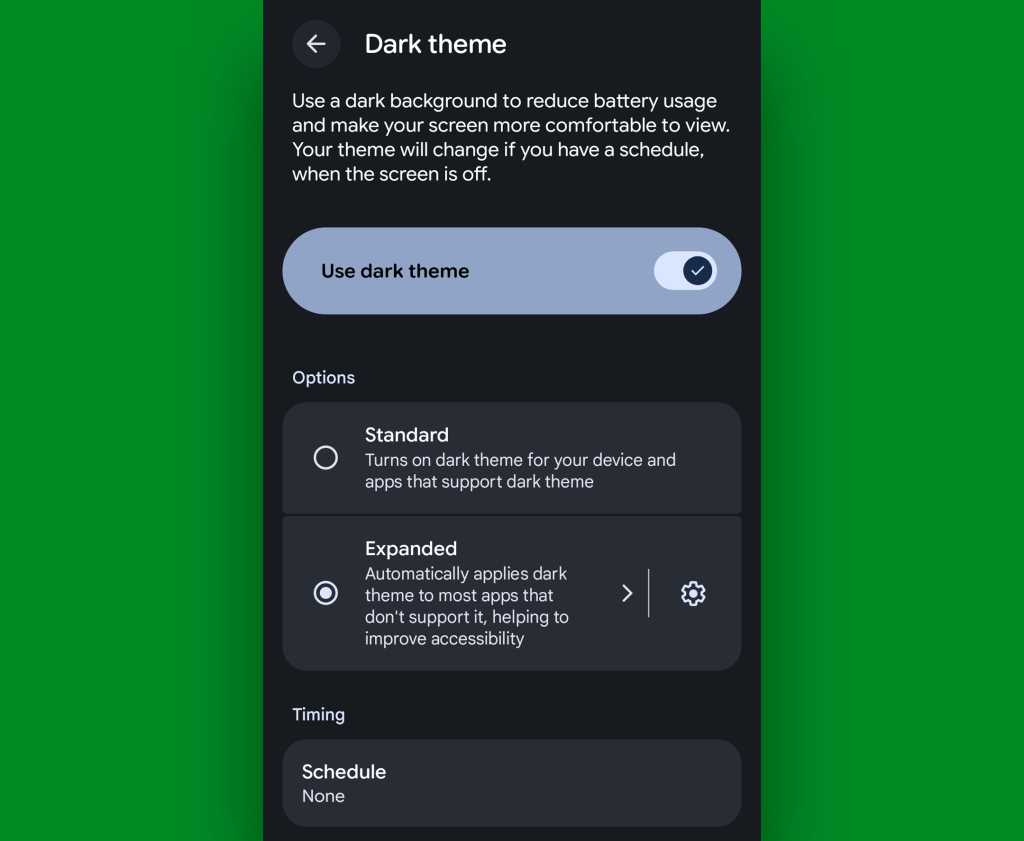
Up first is a feature that arose as part of our Android 17 discussion and sparked the entire idea for this collection — and that’s the one-tap switch in the latest Android version that forces every app on your phone to follow your dark mode preference, whether the program technically supports such a setting or not.
In Android 17, finding and flipping that switch will make every app turn dark whenever the system-wide dark mode is active. It eliminates the irksome exceptions that’ve traditionally stayed stubbornly light (due to developer laziness) even when your dark theme is on.
If you’ve got Android 17 on your phone already, it couldn’t be much easier to make it happen. Just look in the Display section of your system settings, tap the words “Dark theme,” then change the setting that shows up next from “Standard” to “Expanded.”
JR Raphael, Foundry
No Android 17? No problem: On devices with reasonably recent pre-Android-17 system software, you can actually find a switch buried deep in some developer settings that’ll let you enable the exact same option without any waiting.
Follow these instructions and enjoy your new universally consistent darkened dynamic.
Android dark mode power-up #2: A darkened web
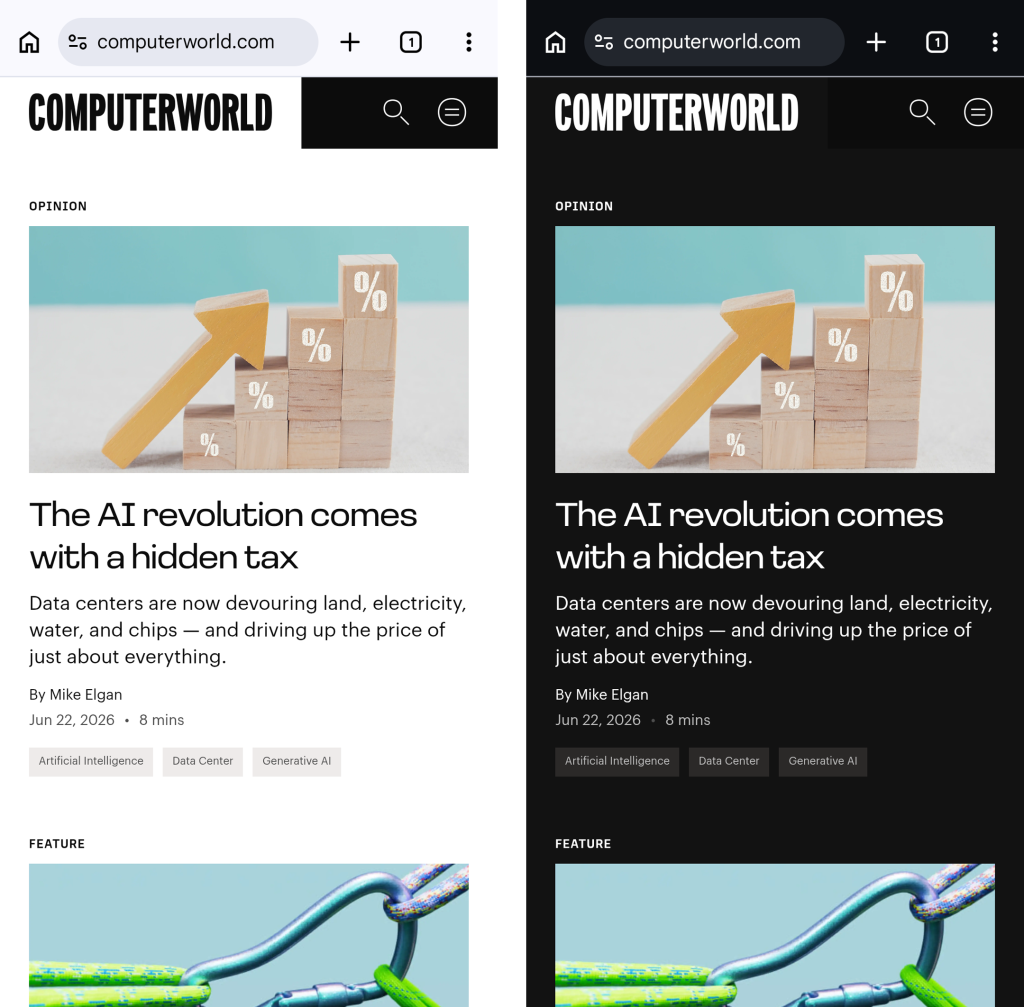
That first trick fixes the issue of certain apps not following your dark mode preference — but what about the web? Most of us spend a fair amount of time in our browsers these days, and most websites won’t follow a dark mode setting and adjust their interfaces accordingly.
They absotively can, though. With the flip of a single switch buried within your browser’s bowels, you can force every website into a darkened motif whenever your system-level dark mode is up and running.
See?
JR Raphael, Foundry
Here’s the secret:
- Open up Chrome on whatever Android device you’re using. (And note that this will also work with any Chromium-based Chrome alternative, like Brave, Edge, or Vivaldi.)
- Type chrome:flags into the address bar.
- Type darken into the search box at the top of the screen that comes up next.
- See the line labeled “Darken websites checkbox in themes setting”? Tap the “Default” box beneath it, and change its setting to “Enabled.”
- Tap the blue “Relaunch” button at the bottom of the screen.
Now, when Chrome comes back a second or so later…
- Tap the three-dot menu icon in its upper-right corner.
- Tap “Settings” in the next menu.
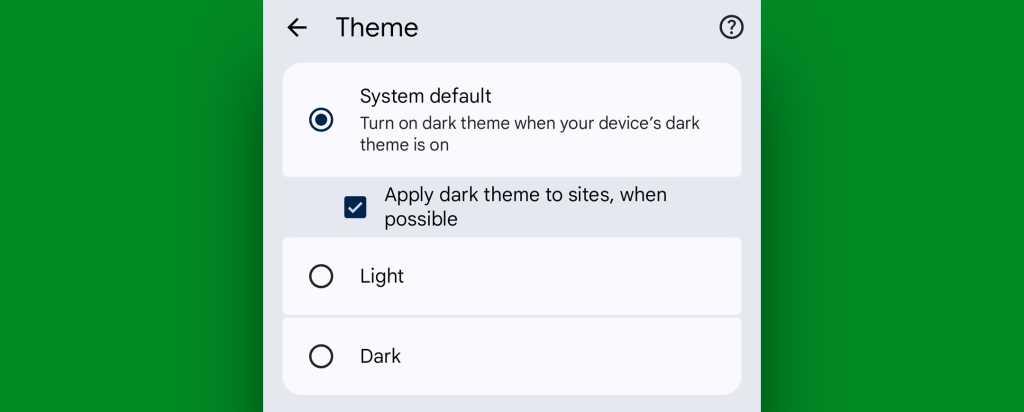
- Scroll down until you see “Appearance.” Tap it, then tap “Theme.”
- Make sure the newly added box for “Apply dark theme to sites, when possible” — which we just magically made appear via our last little modification — is checked and active.
JR Raphael, Foundry
And that’s it: From that moment onward, whenever your Android device is switched into its dark mode, any website you’re viewing within Chrome will automatically follow suit. Nothing more to it, and no further thought or action ever required on your part.
Not bad, eh?!
Android dark mode power-up #3: A dark mode schedule
Even as someone who isn’t into dark mode as a 24/7 sort of thing, I can definitely appreciate the presence of a dimmer, less glary look on my device in certain specific scenarios.
It’s incredibly easy to overlook or forget, but Google’s actually got a way to handle that for you. In fact, it’s been built into Android itself since 2020’s Android 11 release.
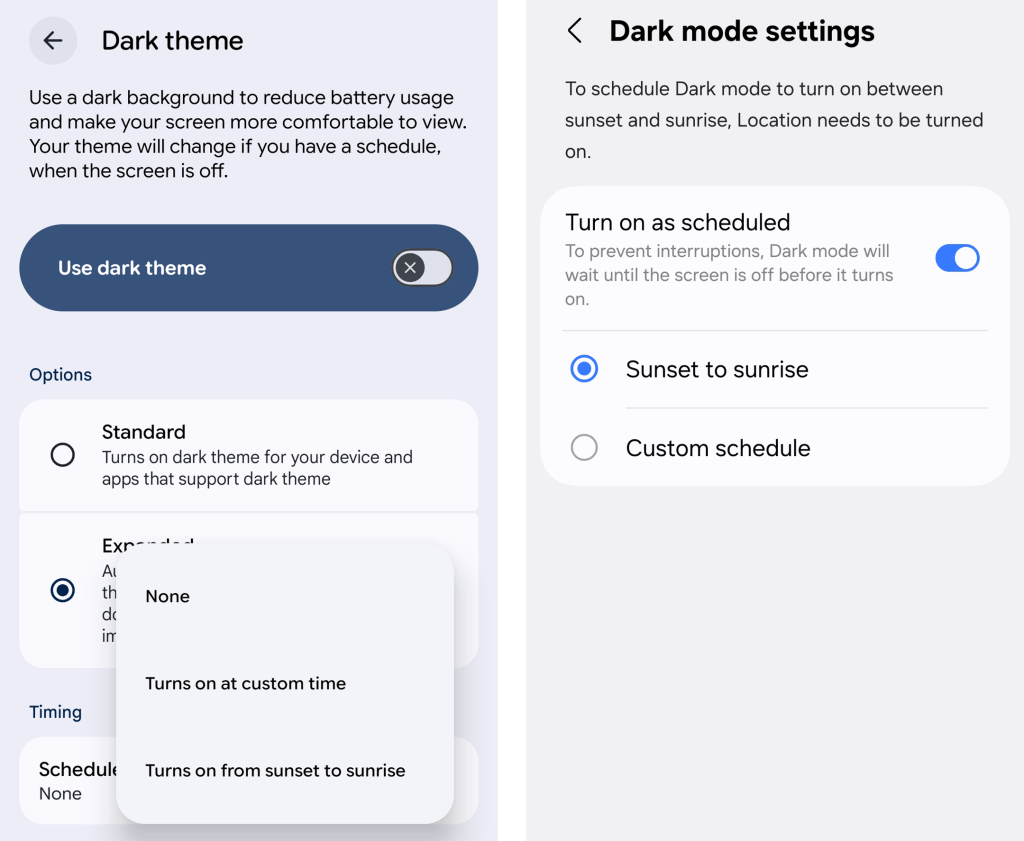
Just look in the Display section of your system settings and tap the line for either “Dark theme” or “Dark mode settings.” If you see a toggle alongside that line, make sure you’re tapping the actual words next to it — not the toggle itself.
Then look for the option to create a schedule.
JR Raphael, Foundry
You can create a time-based rule for when your device’s dark mode turns on and back off again, or — more intelligent yet — you can set it to automatically activate at sunset, wherever you are at any given moment, and then turn itself back off and switch you back over to light mode at sunrise.
You can also integrate dark mode into Android’s rarely noticed Bedtime Mode so that the screen getting dimmer is part of your pre-sleep winddown routine, if you really wanna get wild.
Or — ahem…
Android dark mode power-up #4: Contextual dark mode
A dark mode schedule is pretty forkin’ sensible. But the reality is that even with a time-based setup or a sunset-driven activation approach, you’ll still be using your phone in bright rooms with dark mode active and vice-versa.
And if you want Android’s dark theme present only when you’re actually in a dark room — as makes the most sense in my mind — there’s an even more intelligent option.
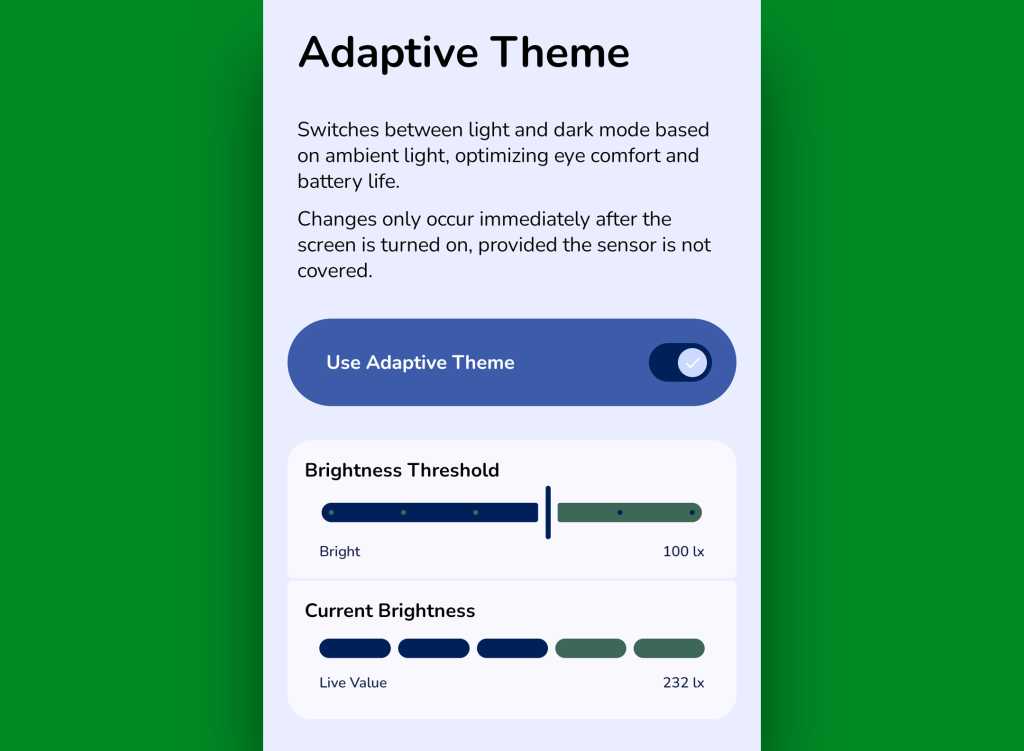
It comes our way via a handy little free app called Adaptive Theme. That app does one thing and only thing only: It automatically adjusts your device’s dark mode setting based on the actual ambient light around you, using your phone’s sensors rather than an arbitrary time or a not-always-relevant sunset status as a guide. It makes so much sense, you’ll find yourself wondering why your phone didn’t just work that way from the get-go.
The app does unavoidably have a slightly complex one-time setup, which I outline step-by-step here. It’s perfectly safe to do, though, and it shouldn’t take you more than a couple minutes to pull off.
And once you’ve done that, your Android dark mode will just work for you — flipping on when the lighting around you is dim (to your exact specifications) and flipping back off when you’re in brighter surroundings.
JR Raphael, Foundry
Yes, please — and thank you. Last but not least…
Android dark mode power-up #5: The wallpaper wizard
Superficial as it may seem, the one piece of the puzzle we haven’t yet addressed — that isn’t ordinarily affected by Android’s dark mode setting — is your home screen wallpaper.
By default, whatever wallpaper you set at the system level stays the same even as your interface moves between its dark and light states — and when you’re anglin’ for a dimmer, less glary look in dark environments, that can be pretty darn jarring.
An app called, rather aptly, Dark/Light Wallpaper Scheduler is the answer you never knew you needed. It’s pretty self-explanatory — you tell it which wallpaper you want when your phone is in dark mode and light mode, then it automatically switches ’em out for you based on that status — but I wrote about it in detail here, if you’re interested in reading more about how exactly it works and how you can make the most of it.
And with that, my fellow Android-appreciating animal, your dark mode power-pack is complete. Now, would someone please turn off the lights? I don’t know about you, but all this talk of darkness has me hankering for a nap.
Wake up to even more useful Android wisdom every Friday with my free Android Intelligence newsletter — one practical new trick to try each week, straight from me to ye.
